How to connect using an Ethernet cable for the first time
Ethernet is generally the most stable and reliable way to connect to the internet. It often provides lower latency than Wi-Fi, making it a great choice for online gaming, streaming, video calls and other activities where a consistent connection is important.
Getting connected should only take a few minutes. Follow the steps below to connect your device using an Ethernet cable.
Before you begin
You will need:
- An RJ45 Ethernet cable. A Cat5e or Cat6 cable is suitable for most devices and connections.
- A device with an Ethernet port. If your laptop or tablet does not have one, you may need a compatible USB-A, USB-C or Thunderbolt Ethernet adapter.
- Access to the LAN, Data or Ethernet wall socket in your room.
How to connect
Select each step below to expand and view the instructions.
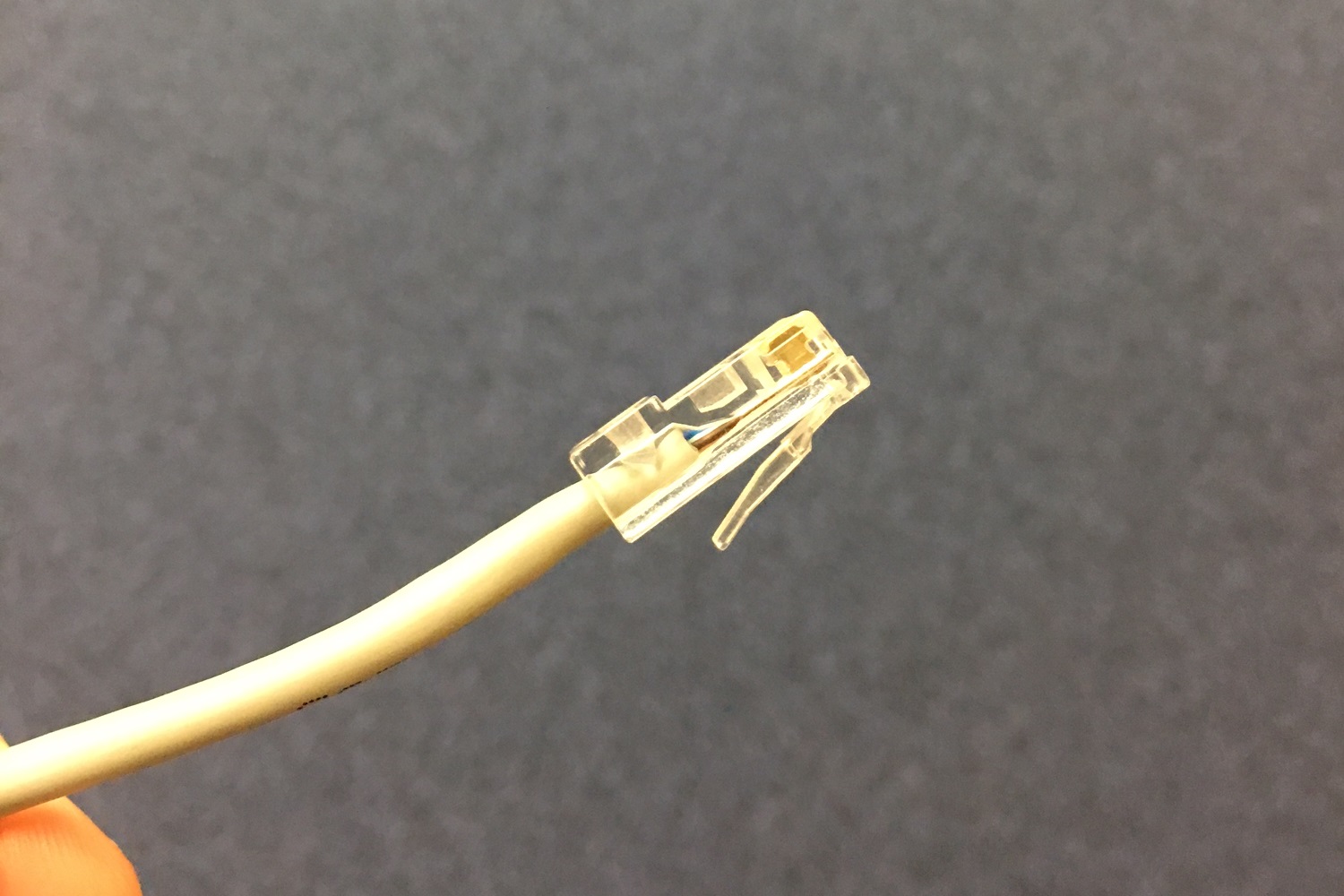
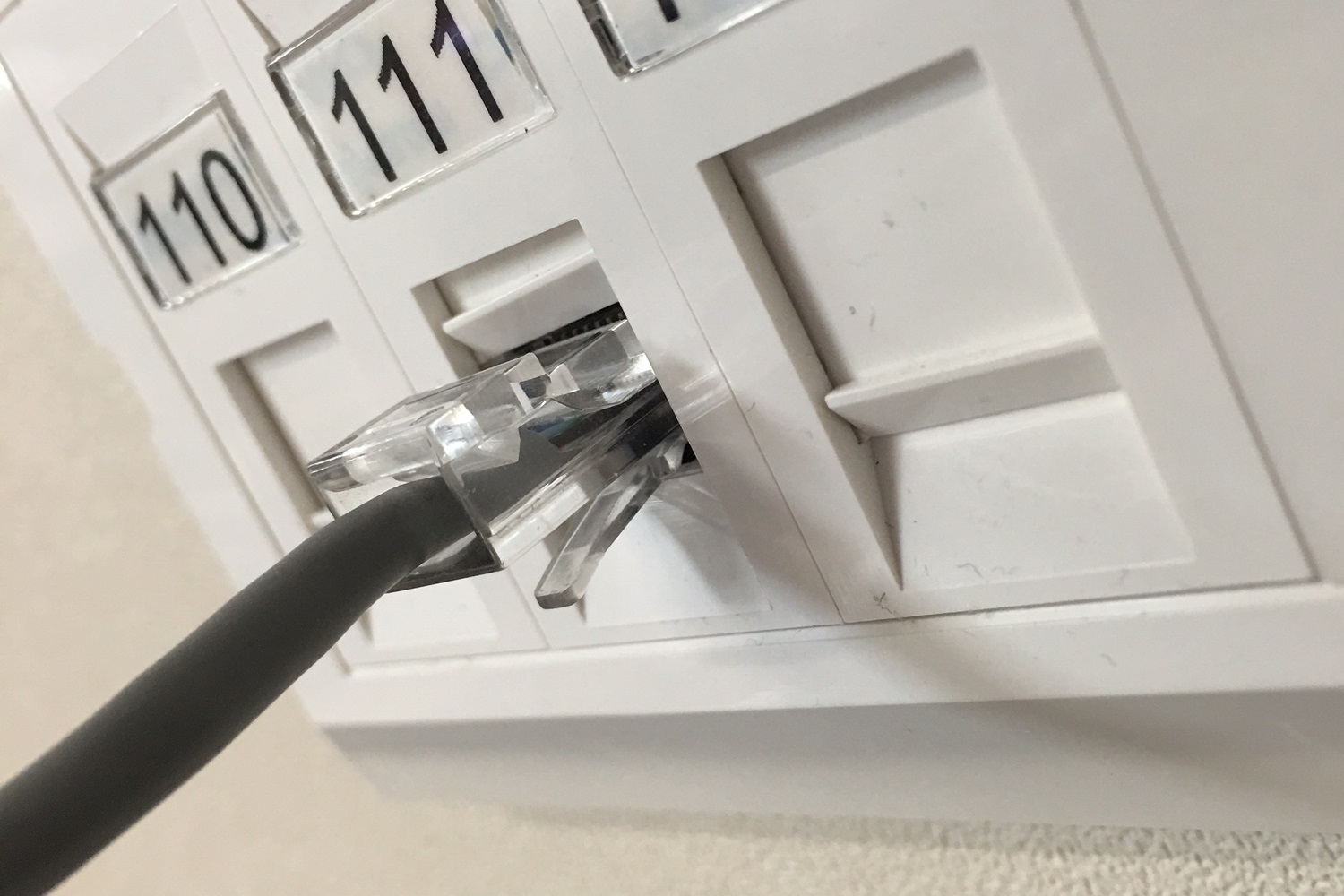
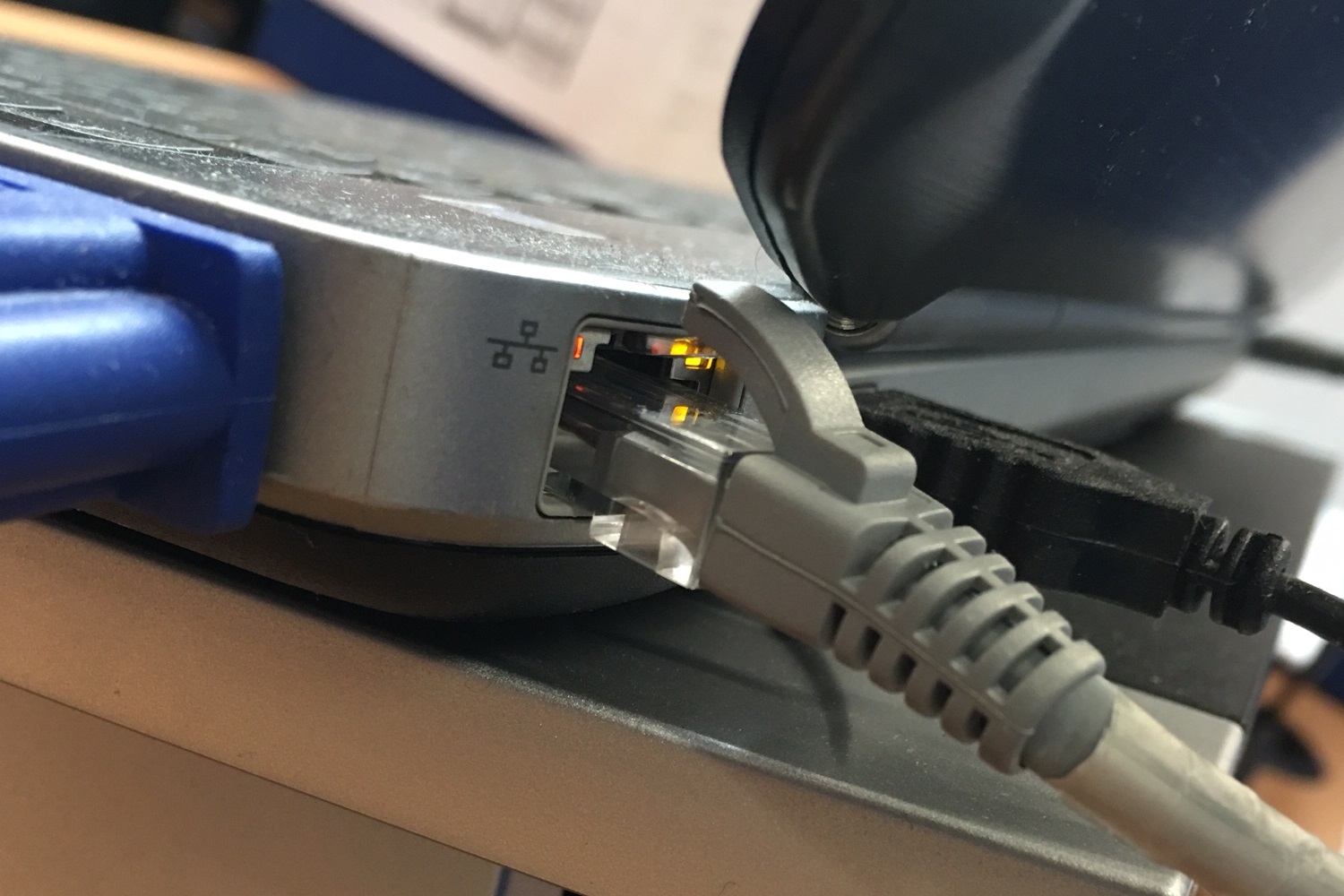
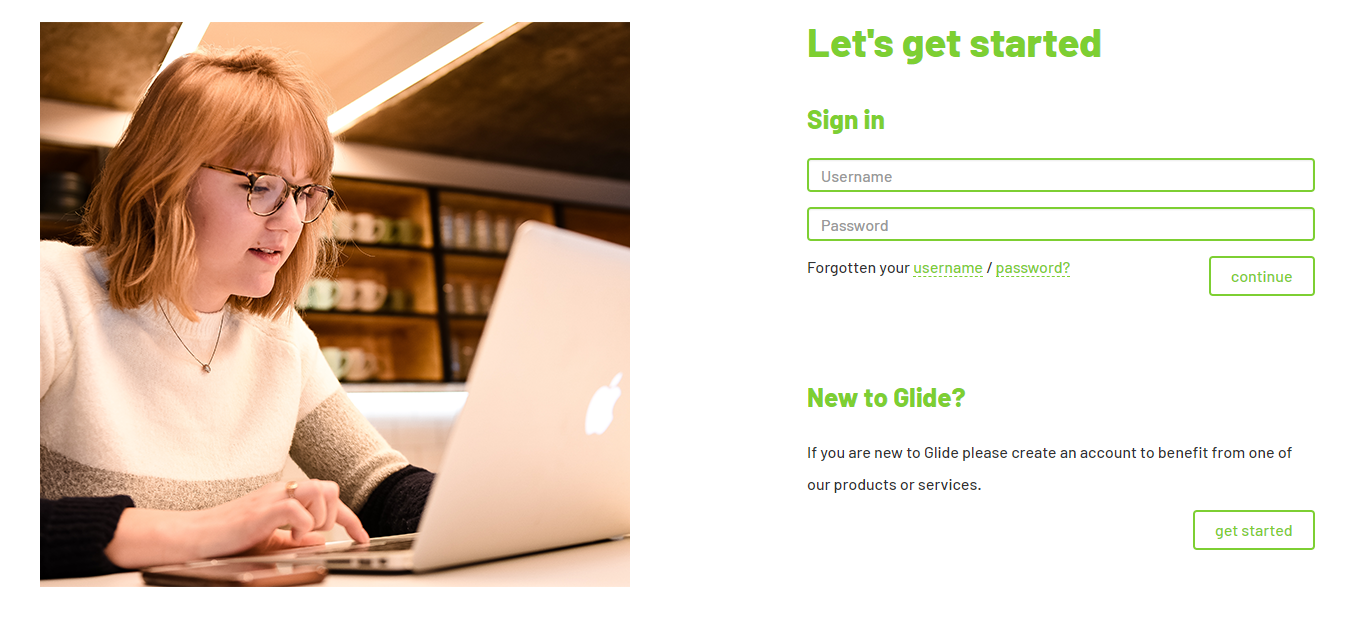
Your accommodation team may be able to provide an Ethernet cable, so check with reception or the front desk first. If a cable is not available from your accommodation, Ethernet cables are inexpensive and widely available online and from electrical retailers. Look for an RJ45 Cat5e or Cat6 Ethernet cable. Locate the wall socket labelled LAN, Data or Ethernet. Insert one end of the cable gently until the retaining clip clicks into place. The connector only fits one way, so do not force it. If your room has more than one suitable socket, not all of them may be active. Start with the socket you normally use or the one closest to your desk. If the connection does not work, you can test the other available sockets. Connect the other end of the cable to the Ethernet port on your computer, console, Smart TV or compatible adapter. Make sure it clicks securely into place. If your Ethernet port or adapter has connection lights, they may illuminate or flicker once a connection is detected. Some devices and adapters do not have these lights, so their absence does not necessarily indicate a fault. On a computer, temporarily turn off Wi-Fi after connecting the cable. This makes sure the device is using the Ethernet connection while you test it. Open your preferred web browser. You should be redirected to the Glide sign-in page. If the page does not appear automatically, visit the Glide registration page. If you already have a Glide account, sign in using your username and password. If you do not have an account, follow our guide to creating an account. Once you have successfully signed in, you should see a message confirming that Your Broadband is now enabled. Open a website to confirm that the connection is working. Connecting a console, Smart TV or another device without a web browser? Follow our guide to adding devices to your account. Make sure you add the device's wired or Ethernet MAC address, as this may be different from its wireless MAC address.Step 1: Get an Ethernet cable
Step 2: Connect the cable to the wall socket
Step 3: Connect the cable to your device
Step 4: Sign in and test the connection
If the connection is not working
Before contacting us, try these quick checks:
- Disconnect and securely reconnect both ends of the Ethernet cable.
- Try a different Ethernet cable, if one is available.
- Try each available LAN, Data or Ethernet socket in your room.
- Restart your device and any Ethernet adapter you are using.
- Check that your device recognises the Ethernet connection and temporarily turn off Wi-Fi while testing.
For complete troubleshooting instructions, see our Ethernet loss of service guide.
Contact the Service Desk
If the connection is still not working, call us on 0333 123 0115, use the form below or view our other contact options.
To help us investigate more quickly, please have the following information ready where possible:
- Your Glide username or account ID.
- Your accommodation, block, floor, flat and room number.
- The type of device you are connecting.
- The device's wired or Ethernet MAC address.
- The wall sockets, cables and adapters you have tested.
- Whether any connection lights are visible.
- Any warnings or error messages displayed by your device or browser.